Mamezu · MCP
Make bead patterns with AI
Connect ChatGPT or Claude to design within your board size and available bead colors. Review a preview, replace colors, then finish in Mamezu.
Before you start
Have a Mamezu account, image, board dimensions and a brand palette or list of owned colors ready. OAuth handles authorization: never give an AI your password or Firebase key.
https://mamezu.torai.dev/mcpSave local projects to Cloud in Mamezu before asking AI to read them. Authorization covers this account’s cloud projects, so check which account you approve.
ChatGPT
If your desktop app has no connection setup, open ChatGPT settings in a browser. Menus and write access vary by version, plan and workspace policy.
- 1
Open Settings → Security and login and enable Developer mode. Some versions place this under Apps → Advanced settings.
- 2
Open Plugins and add a connection. In versions using Apps, use the custom app creation entry.
- 3
Paste the MCP URL below and choose OAuth. Leave Client ID and Client Secret empty; DCR registers the client automatically.
- 4
Sign in to Mamezu, check the account and requested read/edit access, then allow the connection.
- 5
Start a new conversation and enable Mamezu in the tools menu. Ask it to list your cloud projects to check the connection.
https://mamezu.torai.dev/mcp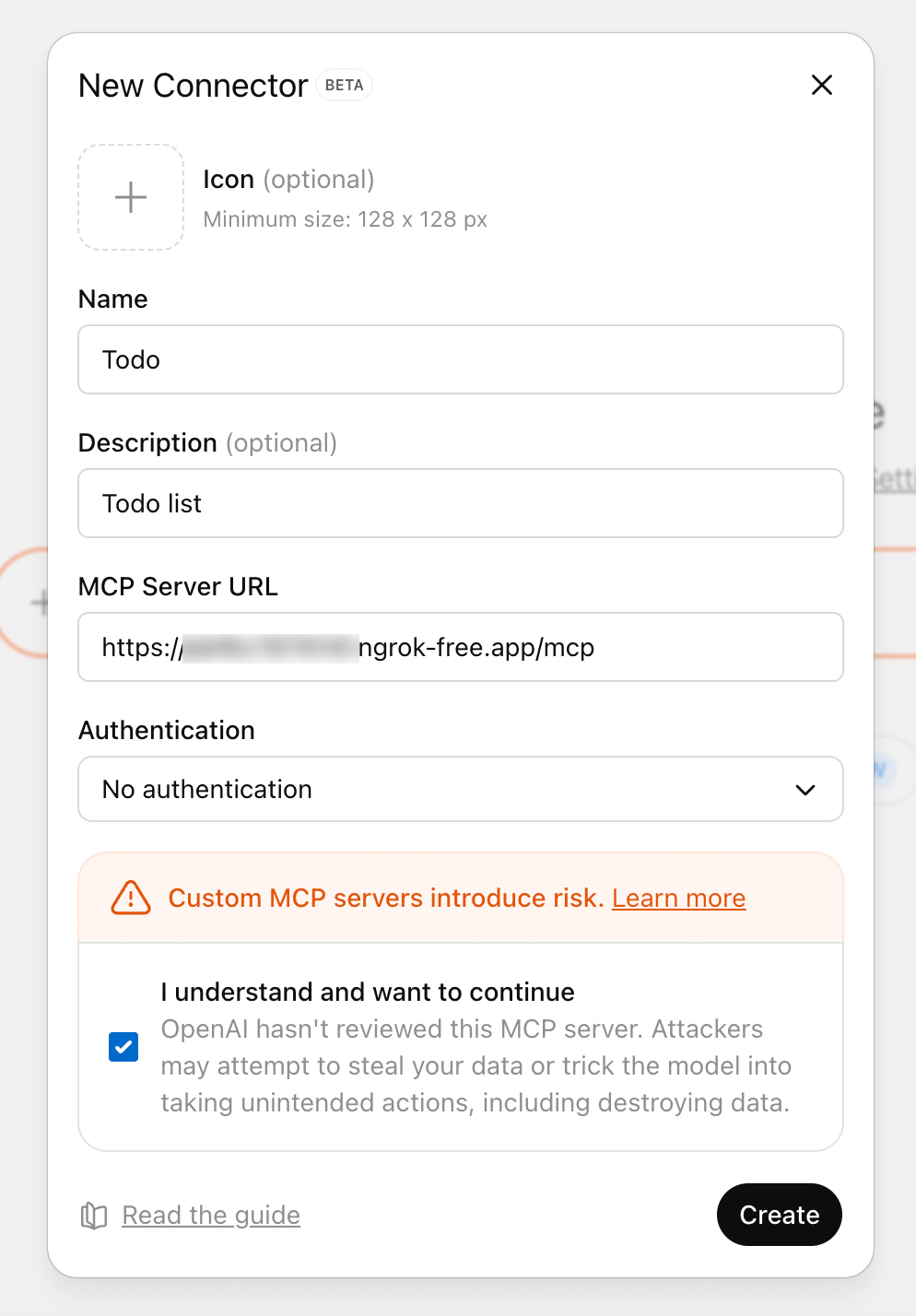
Claude · Desktop / Web
- 1
In Claude Desktop or on the web, open Customize → Connectors. Some versions use Settings → Connectors.
- 2
Choose + → Add custom connector, name it Mamezu and paste the MCP URL below.
- 3
Leave Client ID and Client Secret empty and add the connector. Mamezu supports automatic registration through DCR.
- 4
Choose Connect, sign in to Mamezu and approve the requested cloud access.
- 5
In a new chat, enable Mamezu under + → Connectors. Team accounts may need an owner to add it first.
https://mamezu.torai.dev/mcpThis is a remote connector; no claude_desktop_config.json edit is needed. If Claude cannot pass an attachment to a tool, import it in Mamezu and save to Cloud first, then ask Claude to open that project.
Official instructions ↗Codex · CLI / Desktop
- 1
Install or update Codex CLI and run the add command below. It saves the server in your user configuration and starts browser authorization.
- 2
Sign in to Mamezu and review the account and read/edit permissions. Run login if authorization did not start automatically; skip it if already completed.
- 3
Run get to verify the configuration. Start a new Codex conversation, check /mcp or Desktop MCP settings, and ask it to list your cloud projects.
codex mcp add mamezu --url https://mamezu.torai.dev/mcp
codex mcp login mamezu
codex mcp get mamezuClaude Code
- 1
Install or update Claude Code, then run the commands below to add Mamezu at user scope.
- 2
Run login and approve access in Mamezu in your browser. Alternatively, enter /mcp in Claude Code and select Mamezu to authenticate.
- 3
Start a new conversation and ask Claude to list your Mamezu cloud projects to verify tool access.
claude mcp add --transport http --scope user mamezu https://mamezu.torai.dev/mcp
claude mcp login mamezu
No API key or Client Secret is needed. Use --no-browser when signing in from a remote terminal. If your version lacks the login subcommand, update or use /mcp. Revoke access from the Mamezu AI connections page.
Official instructions ↗Make your first pattern
- 1
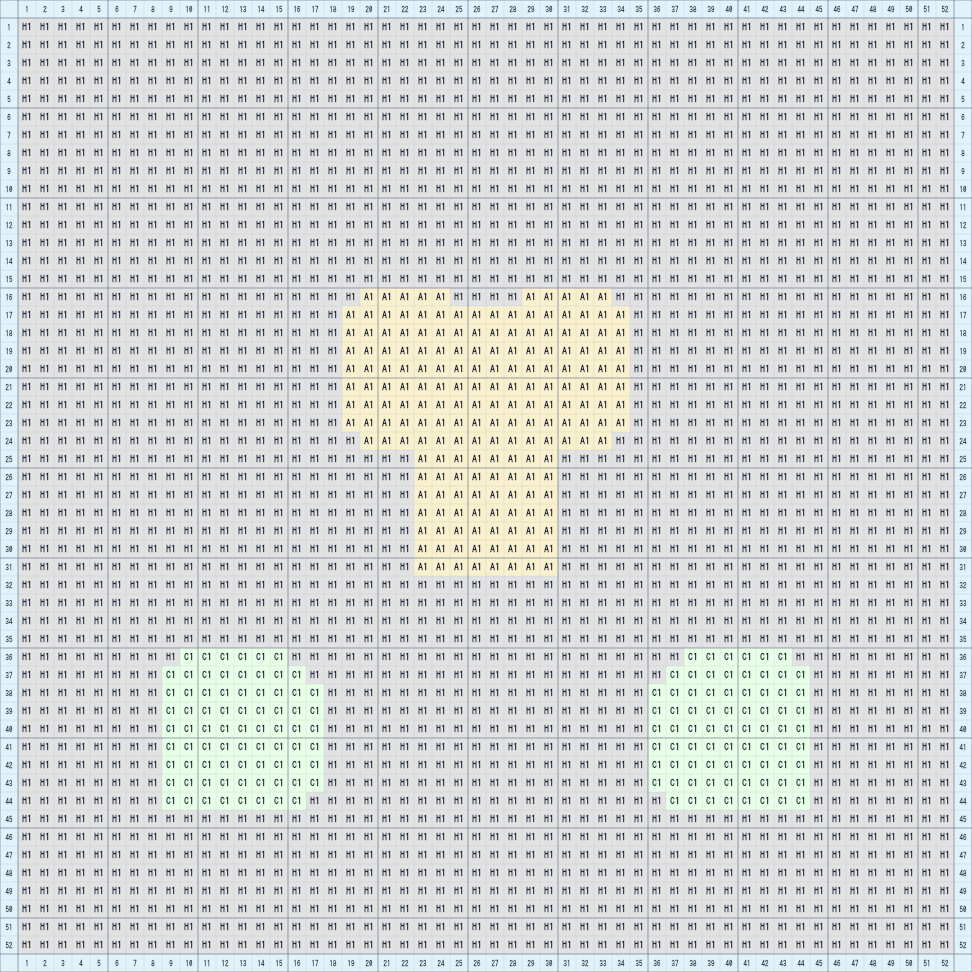
Provide an image and exact board dimensions, such as 52 × 52 or 104 × 104. If the attachment is inaccessible, import it in the editor and save a cloud project first.
- 2
Specify the brand and series, plus your owned color codes if you have a limited set. Ask AI to confirm the available colors before creating anything.
- 3
Request a first draft and preview. Then adjust framing or contrast, or replace a color with another available bead color.
- 4
Open Projects in Mamezu, switch to Cloud and open the result. Reopen an already-open project to load remote edits; live collaboration is not connected yet.
Turn this image into a 52 × 52 bead pattern. Use the MARD palette, limited to A1, A2, B1, C1 and H1. Verify the codes first. Fit the whole image, show a preview and bead counts, then suggest improvements without adding colors.Available codes limit the color set, not your remaining bead quantities. Screen colors are approximations; check physical beads before making the piece.
Tool-call example
First call get_project for the project ID and current revision. This example replaces A1 with A2 throughout the project; A2 must be an available color.
{
  "name": "apply_project_commands",
  "arguments": {
    "projectId": "YOUR_PROJECT_ID",
    "expectedRevision": 1,
    "commands": [
      {
        "type": "color.replace",
        "source": "A1",
        "destination": "A2"
      }
    ]
  }
}
Developers can inspect OAuth resource discovery with this command. It does not read private projects.
curl https://mamezu.torai.dev/.well-known/oauth-protected-resource/mcpTroubleshooting
Missing setup or write access?
Check the client version, plan and workspace permissions. Try the official web setup. Mamezu cannot enable features on your AI account.
Image import failed?
PNG, JPEG and WebP are supported, up to 10 MiB downloaded and 16 million decoded pixels. Temporary attachment URLs can expire. Reattach the image or import it into a cloud project in Mamezu.
REVISION_CONFLICT?
Another editor changed the project. Ask AI to read the latest revision and review the intended changes before retrying. Do not overwrite newer work with an old revision.
Preview reports an unavailable font?
The server cannot access fonts installed on your computer. Images, colors, shapes and pixel digits render directly; use the editor preview for ordinary text layers for now.
How are points counted and access revoked?
Each MCP call costs 1 point; image conversion or preview costs 10. Each user has 2,000 points per month, resetting on the first day at 00:00 UTC. Calls exceeding the remaining allowance are not run or charged; admitted operations are charged even if they fail.